Search "countdown timer widget" and you'll mostly find generic ones built for coming-soon pages and product launches — fine for a marketing site, but not built with an event's two actual countdown moments in mind: the weeks before, when you want registration urgency on the page, and the day itself, when you want a clock on the screen behind you for the Q&A slot or the coffee break. We built one tool that does both.
What it does
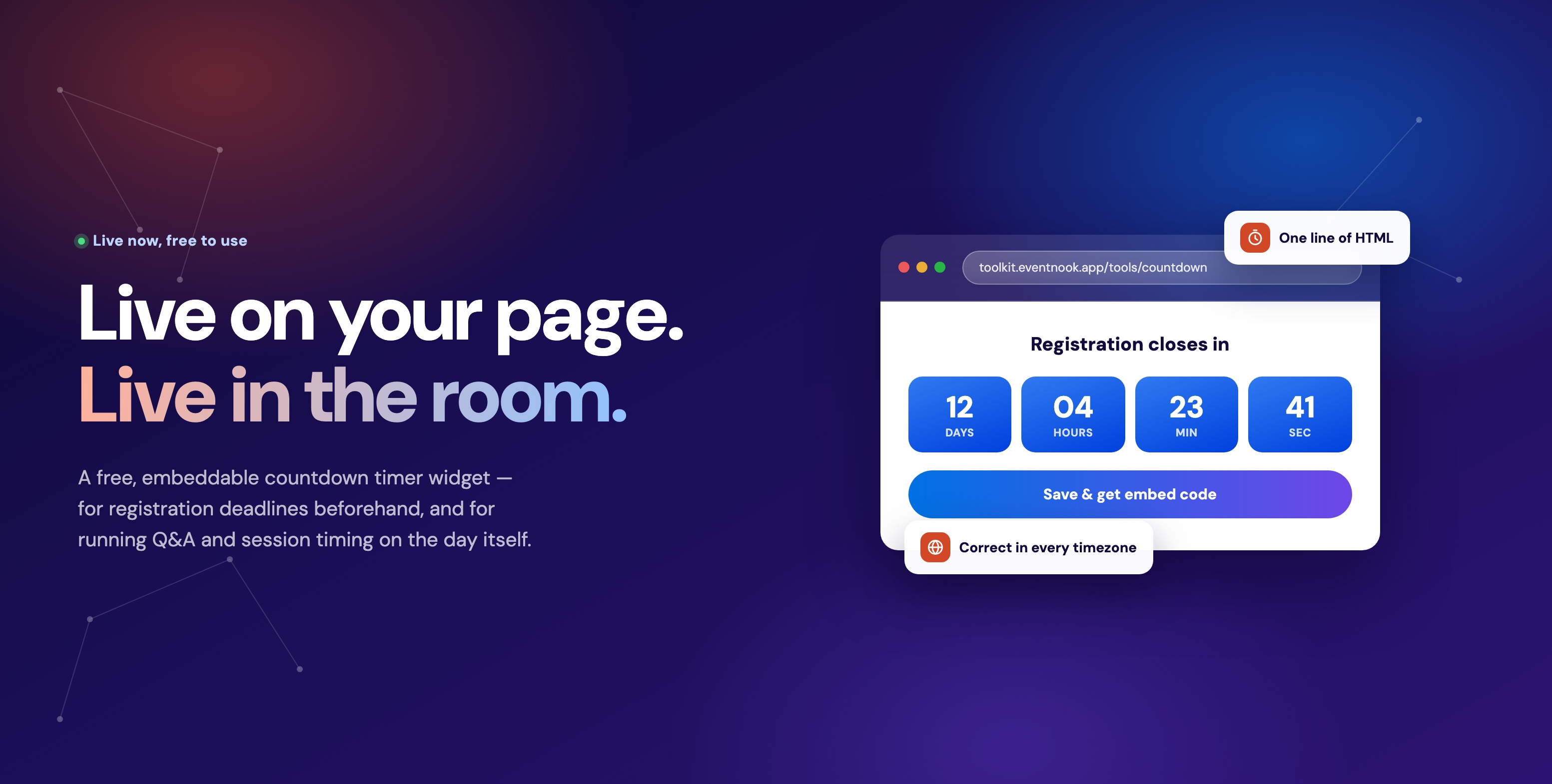
Set a target date and time, and the widget counts down in days, hours, minutes and seconds — correctly, in whatever timezone the visitor is actually in, not the timezone you built it in. Every visitor sees an accurate number without you doing anything extra. Output is a single line of HTML that works on WordPress, Wix, Squarespace, Webflow, a raw HTML page, or pasted straight into an email.
Registration closes in
A free account gives your timer a permanent link, so you can change the date later without editing any page it's embedded on.
Setting it up
- Name it — an internal label so you can tell it apart from other timers in your dashboard. Nobody but you sees this.
- Write the headline and sub-heading — e.g. "Registration closes in" over the digits, "Save 30% on all conference passes" underneath. Both optional, both editable later.
- Set what it counts down to — a date and time, plus the timezone you're entering it in. The widget converts correctly for every visitor from there.
- Pick a style — see the options below — and, optionally, a "Register now" button built into the same embed.
- Decide what happens at zero — show a message, hide the timer, or redirect to a URL.
- Copy the embed code — one line, works anywhere that accepts HTML.
Countdown name
My event countdownHeadline & sub-heading
Registration closes in Save 30% on all conference passesCounts down to
20/09/2026, 09:00 AM Asia/SingaporeStyle
When it reaches zero
Embed code
Two ways event teams actually use this
Before the event: urgency on the page
This is the use case most countdown widgets are built for, and it still matters: a live "registration closes in" clock on your event page converts better than static text, because the deadline is visibly moving instead of sitting there as a sentence someone skims past. Common placements:
- Early-bird pricing deadline on the registration page
- "Doors open in" on a pre-event landing page, set to redirect straight to the livestream the moment it hits zero
- A coming-soon page before the full event site is ready
- An email reminder for the last few hours of ticket sales
On the day itself: running the room
The part most countdown tools never think about, because they're not built by people who also run events: the same widget works as a live, on-screen timer for the day-of schedule. Point a laptop or the venue's screen at it for:

- A Q&A segment — "5 minutes for questions" counting down where the audience and moderator can both see it
- A speaker's time limit, so nobody has to hold up an awkward hand-written "2 MINUTES" sign
- The gap between sessions — "We're back in 10 minutes" on the main screen during a break
- A countdown to the next segment starting, visible in the room and on the livestream at the same time
Same setup either way: pick Minimal or Inline layout, a large size, and a short target window — the tool doesn't care whether the target is three weeks away or three minutes away.
Customising how it looks
| Option | Choices |
|---|---|
| Style | Brand, Light, Dark, Glass |
| Layout | Boxes, Minimal, Inline |
| Size | Small, Medium, Large |
| Colours & corner radius | Match your event's own branding |
| Display toggles | Unit labels, seconds, day rollover |
| Optional CTA | A register button built into the same embed |
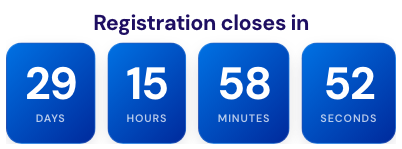
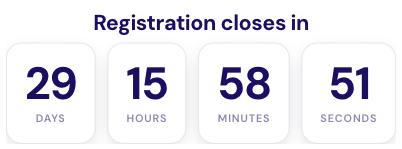
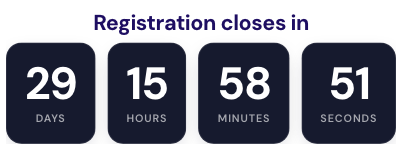
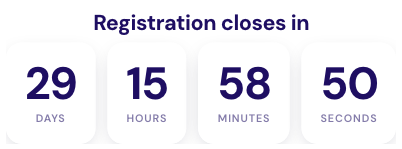
Real screenshots, not mockups — this is the same live preview from the tool, cycling through all four built-in styles. Brand pulls your accent colour into a solid gradient; Light and Dark are neutral opposites of each other; Glass sits somewhere between the two, for pages with their own busy background.
The "what happens at zero" setting is worth a second thought: a message ("We've started!") suits a page that stays up after the event; hide suits a countdown embedded next to other content that shouldn't look stale; redirect is the one to use for "doors open in" pages, since it can send the visitor straight into the livestream URL the instant the clock hits zero, with nobody needing to click anything.
Free to use, with an optional account
No account is needed to build a timer and copy the embed code — it works immediately, for free. A free account adds one thing: a permanent link, so the timer becomes editable in place. Move the session by an hour and every page it's already embedded on updates automatically, without you touching the page again.
Common questions
Does it show the correct time for visitors in other timezones?
Yes — you set the target once, in your own timezone, and the widget converts it correctly for whoever is looking at it, wherever they are.
Can I embed it in Wix, Squarespace or Webflow, not just WordPress?
Yes. The output is a single line of standards HTML, which every one of those platforms accepts through their embed or custom-code block.
Can I use it as a live on-screen timer during the event, not just for marketing beforehand?
Yes — that's the second use case above. Set the target to a few minutes out instead of a few weeks out, pick a large Minimal or Inline layout, and it works the same way on a laptop screen at the front of the room as it does embedded on a web page.
What happens after the countdown reaches zero?
Whatever you set it to: display a message, hide itself, or redirect to a URL — configurable per timer, and changeable later if you have a free account.
More than one tool
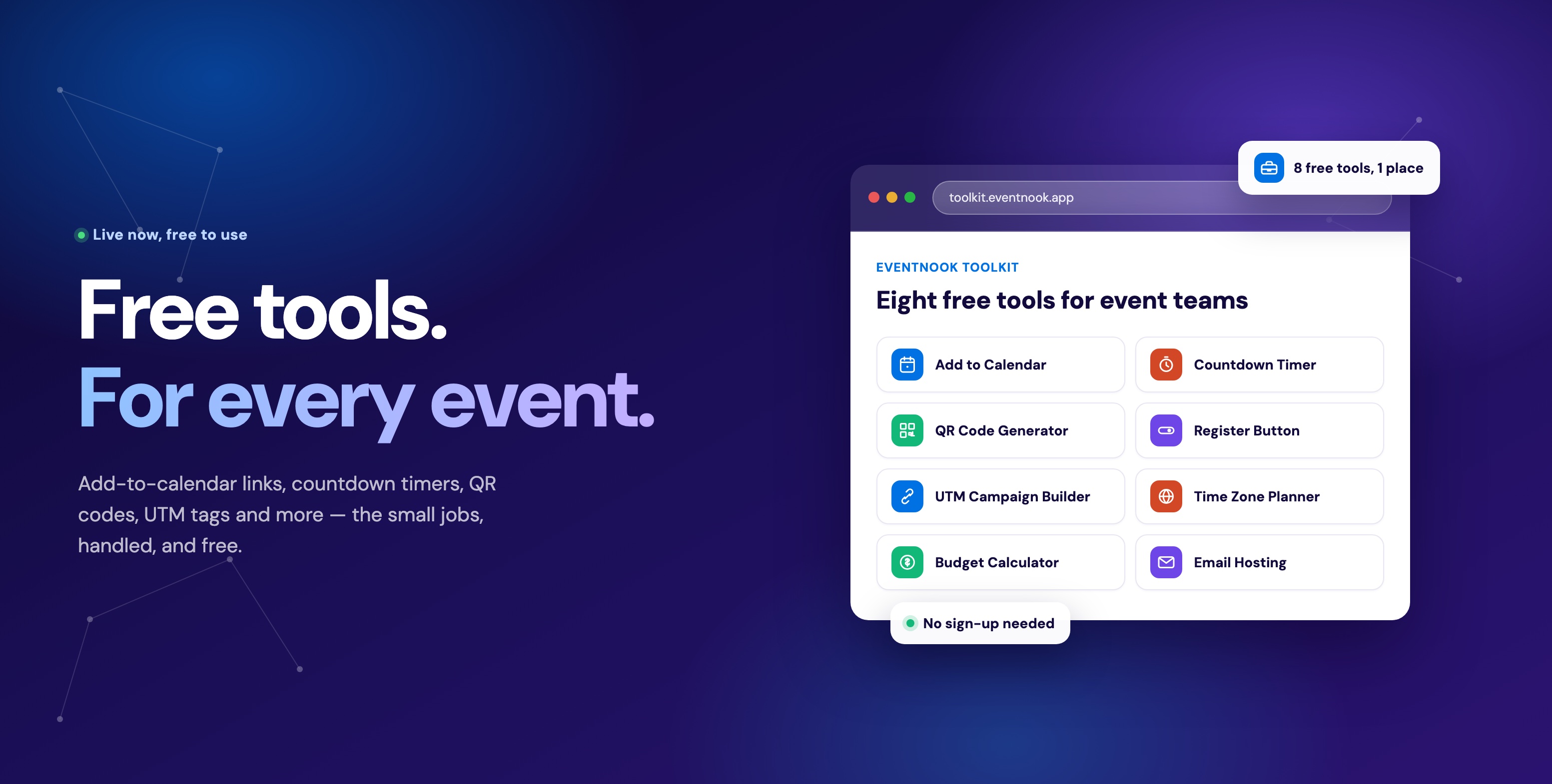
The countdown timer is one of eight free tools in the EventNook Toolkit — the same place has an add-to-calendar link generator, a QR code generator, an Outlook-safe register button, a UTM campaign builder, a time zone planner and an event budget calculator, all free and built for the same small, recurring jobs.
Try it
It takes under a minute and costs nothing.
Build a countdown timer · See the full toolkit · Talk to us about event ticketing