We kept getting the same request in different clothes: "can we make the registration page match our brand," "can the checkout look less generic," "can this one button be a different colour without changing every other button on the site." Some of those really are "build us something from scratch" requests — if that's you, FlowAI will get a fully custom event website built in minutes, and it's worth trying first if what you need doesn't resemble a registration flow at all. But most of these requests weren't asking for a new site. They were asking to fix one page, or one element, on the site they already had — and the old Theme Editor didn't have a good answer for that, because it only had one flat set of controls for the whole site.
The Theme Editor in App v3 has three layers now instead of one, and none of them require knowing what CSS is. Here's what each one actually does.
What changed
Layout & Background — the two controls you reach for most
Before anything page-specific, two controls sit up front because they're what admins actually touch most: site content width, and page background. Background isn't just a colour picker any more — it's a Solid / Gradient / Radial / Image toggle, plus a bank of one-click gradient presets for anyone who doesn't want to pick two hex codes and hope they work together. Set it once at the site level, or override it per page further down in Pages & Elements.
Page background
Popular gradients — click to apply
Pages & Elements — a picker that matches what's actually on the page
Step 1. Pick which page you want to customise.
Essentials
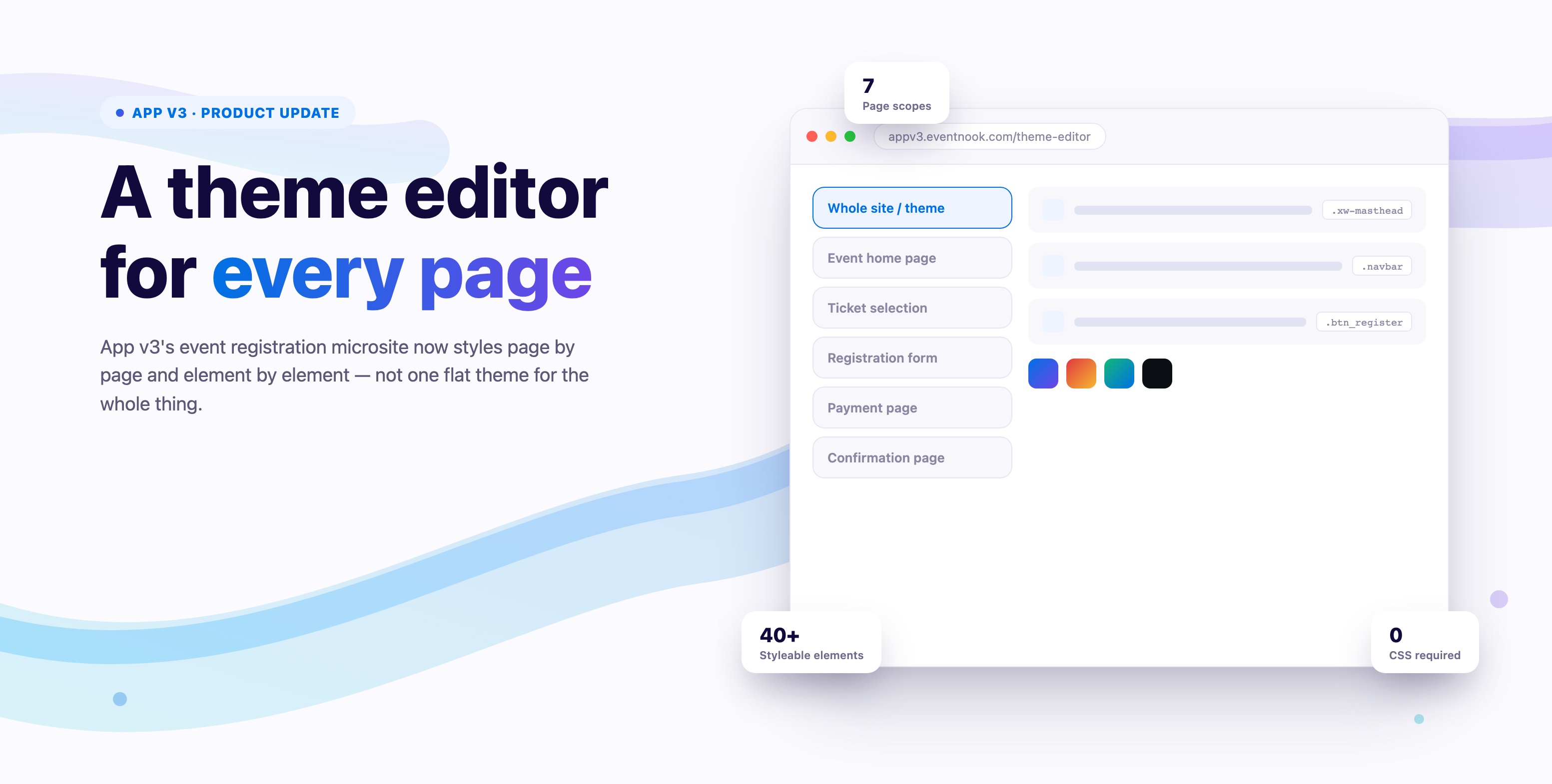
This is the new part, and the reason it exists: restyling a page used to mean already knowing which of dozens of settings applied to it — you had to do the site's information architecture yourself before you could even start. Pick a page now — Whole site, Event home, Ticket selection, Registration form, Payment, Confirmation, Manage my orders — and the element list below does that thinking for you, surfacing only what's actually relevant to that page: the ticket page shows ticket cards and validation alerts, the registration page shows form inputs and the payment summary, and so on. It works like a template built for each page type instead of one long list you have to guess your way through — and every element inside it is still fully customisable on its own terms: colour, padding, border, font size, its own background type. Each one shows its real CSS selector in a small reference badge, for anyone who wants to go further with custom CSS elsewhere.
General theme — the brand basics you set once
Tucked below the page-specific controls, because most admins set these once and never come back: primary, secondary and status colours (success, danger, warning, info), card and text colours, font family, and a single corner-roundness slider that reshapes every card, button and input on the site at once. This is the brand-wide layer — deliberately separate from Pages & Elements, so setting a global accent colour doesn't fight with a page-specific override further up.
Brand Colors
Corner roundness
Ready-made themes, a "Show me" button, and every step of checkout — not just the home page
On top of the three layers above, two more things make this easier to use, and they're aimed at opposite ends of the same problem. If picking colours and gradients one control at a time still sounds like more than you want to do, twenty ready-made themes now do it in one click. And if you do want to get into the granular controls, a "Show me" button on every single one points at exactly where it lives on the real page, so you're never guessing which setting controls which pixel.
Twenty ready-made themes, one click
Open the Theme Editor for any page now and there's a Customize tab sitting next to the granular controls, with twenty named, ready-made looks — Bold Gradient, Clean & Light, Midnight, Warm Editorial, Fresh Mint, Sunset Glow, Ocean Deep and more — each a real thumbnail of its own header, title and Register button. Clicking one restyles those three things instantly in the live preview; your brand colours and every other page stay untouched until you're happy and press Save Changes. It's the fast path for anyone who just wants a good-looking result today, with "Fine-tune in Theme Editor" one click away if a theme gets 90% of the way there and a colour or two still needs adjusting.
Choose a ready-made theme
Live preview
Coffee & Demos: Badge Showcase
Register"Show me" — never guess which control does what
The granular side got easier to navigate too. Click any section in the left-hand list — Header / Hero, Register Button, Content, Footer, Navigation Bar — and a green label drops directly onto that part of the live preview, telling you exactly what you're about to edit before you touch a single setting. Every sub-element nested underneath it, down to individual pieces like the banner image, the event title, or the "Add to calendar" link, has its own "Show me" button that does the same thing at that level of detail. You no longer have to know that "the thing under the date" is technically called .xw-event-location — you click "Show me," see it highlighted on the actual page, and change it.
The same brand, from ticket selection through to the thank-you page
The original three layers already let Pages & Elements scope a restyle to an individual page. What's new is that every stage of the actual registration funnel now gets the full theme treatment — Ticket Selection, Registration Form, Payment and Thank You each get their own page-specific sections, ready-made themes and live preview against real ticket, form and payment data, not a mockup. Ticket Selection themes the ticket cards, prices and tiers, quantity pickers and discount-code field. Registration Form extends the same theme into the form fields, order summary and Smart Scan business-card capture. Payment carries it through to the Stripe and bank-transfer options and the Make Payment button. Thank You finishes the loop, including per-outcome message states — "Confirmed order" and "Pending approval" each get their own text and, if you want a custom illustration instead of the default checkmark, an Upload Image button right there in the editor.
Registration Confirmed
Download e-TicketColour still comes down to typing in a hex code wherever one's needed — the navigation bar's background and menu-link colour, brand colours, any section's background — so a specific brand colour carries through identically across all five pages instead of landing on five close-but-not-quite shades. Ticket sales, registration, payment and confirmation end up looking like one coherent experience instead of four different tools stitched together, whether you get there with one of the twenty ready-made themes or by fine-tuning each page by hand.
Two ways this gets used
An agency running microsites for a dozen clients
An events agency running registration microsites for a dozen different clients can't have every site look like "another EventNook page" — each one needs to look like it belongs to that client. Instead of hunting for the right CSS class per site, General theme's brand colours plus a page-scoped background (solid, gradient, radial or image) and a shared corner-roundness slider get a distinct look — different gradient, different button shape, different accent — done in the time it used to take to find where the old settings even lived.
A sponsor-branded landing page, with a checkout nobody has to second-guess
A title sponsor wants their colours on the event home page — fair enough, that's the page people share and screenshot. But the payment page is not the place to experiment: attendees trust a checkout that looks like the platform they're already paying through, and a sudden sponsor palette mid-payment reads as "did I get redirected somewhere." Because Event home and Payment are separate scopes in Pages & Elements, the sponsor's colours can live entirely on the landing page while the payment flow stays in the organiser's own established look — no compromise on either side.
One event, two page rules
Event home
Sponsor colours
Payment
Organiser's theme
Independent scopes, same event.
If what you need is a whole new site, not a restyle
Sometimes the honest answer isn't "restyle the registration flow" — it's "this needs to be a different site altogether." If that's where you are, FlowAI builds a full custom event website in minutes rather than weeks, at a fraction of the cost of a bespoke build. The Theme Editor and FlowAI solve different problems on purpose: one restyles the registration flow you already have, the other builds you a new one.
Common questions
Can I customise my event registration microsite without knowing CSS?
Yes. Every control in the Theme Editor — page background, brand colours, per-page elements — is a visual picker: colour swatches, toggles and a corner-roundness slider, not a code field. The real CSS selector is shown next to each element only as a reference, for anyone who wants to go further with custom CSS elsewhere; it's never required to use the tool.
Will changing my brand colours affect every page of my registration flow?
Only if you want it to. General theme sets the brand-wide defaults (colours, fonts, corner roundness) that apply everywhere unless a page overrides them. Pages & Elements lets you override any single page or element on top of that — so you can, for example, keep the payment page in your default theme while the event home page uses sponsor colours, without one setting fighting the other.
Can different pages of my event microsite have different backgrounds or button styles?
Yes — that's what Pages & Elements is for. Pick a page (event home, ticket selection, registration form, payment, confirmation, or manage-my-orders) and every background, colour and style control scopes to that page only. Nothing you change there touches any other page.
What's the difference between the Theme Editor and FlowAI?
The Theme Editor restyles the registration flow you already have — same pages, same structure, new look. FlowAI builds you a new event website from scratch in minutes. If "make this page match our brand" is the ask, use the Theme Editor. If the ask is closer to "we need a different site altogether," FlowAI is the faster and cheaper route than a bespoke build.
Does restyling my registration page slow it down or hurt SEO?
No — Theme Editor changes are style overrides on the page you already have; they don't add pages, change your URL structure, or add render-blocking scripts. The content and structure search engines index stay the same, only the colours, backgrounds and shapes around them change.
Try it
The new Theme Editor is live for every App v3 event under Setting → Site Content → Theme Editor. Pick a page, expand an element, and change what actually needs changing — nothing else on the site has to move.