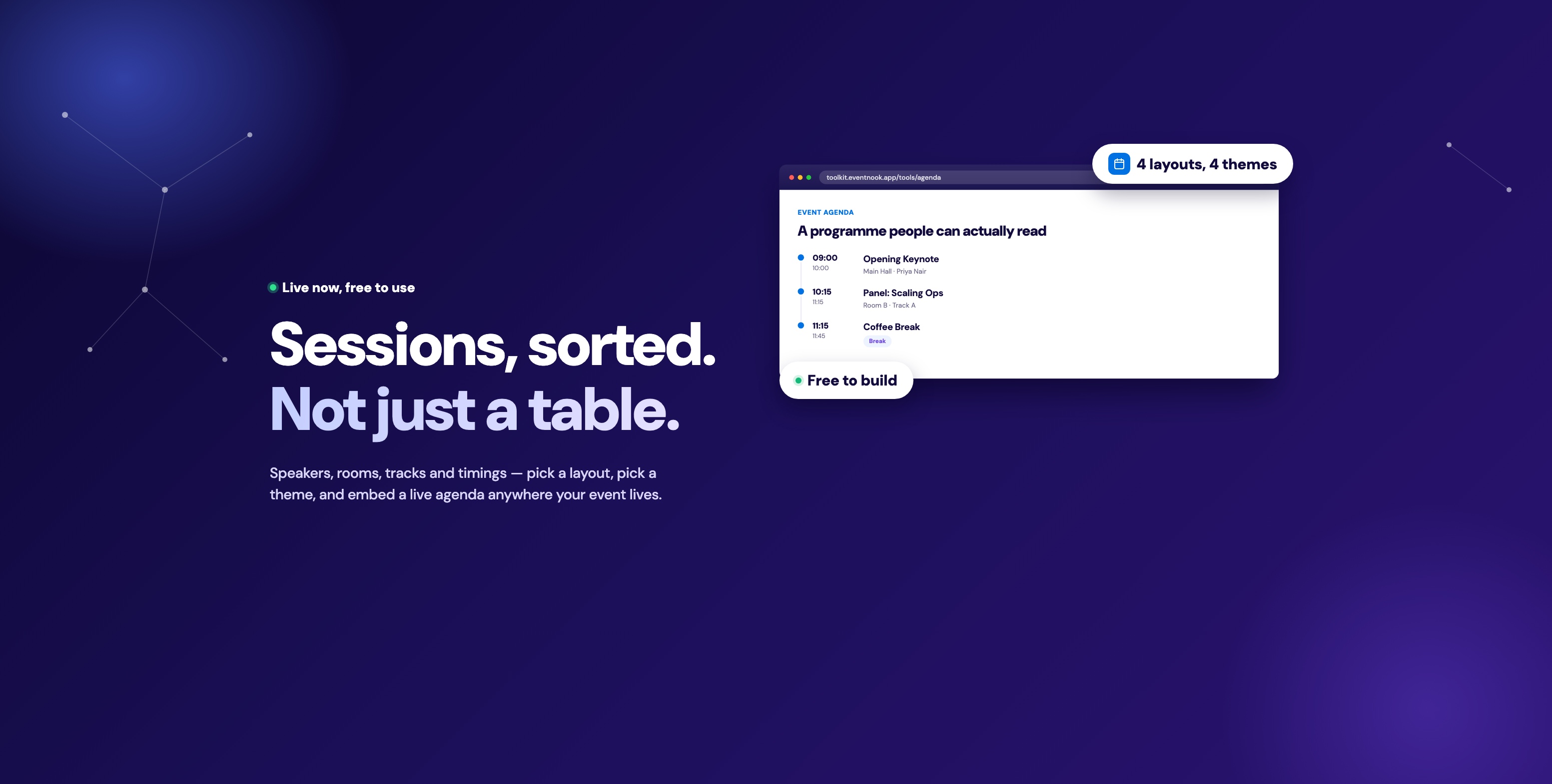
Most event programmes start life as a table. Times down one column, session names down another, maybe a third if there's room for the speaker. It works, right up until a second track needs its own column, or a session moves twenty minutes and every row after it needs rechecking by hand, or someone pastes it into a registration page and the borders collapse the moment a phone screen gets involved. A programme is one of the first things an attendee actually reads, and one of the fiddliest things to keep looking right — so we built a tool that generates it as a live, embeddable schedule instead of a table you re-paste every time a detail changes.
What it does
Build the programme once, and it hands back a schedule you can drop straight into a page:
- Session-by-session detail — name, speaker, room and track per session, each with its own duration
- Four layouts — Timeline, List, Cards or Table, with a compact mode for tighter spaces
- An embed that updates itself — change a speaker the night before, and every page it's embedded on reflects it without re-publishing anything
- A shareable link, for the places embedding HTML isn't an option
- Multi-day and multi-track built in — not bolted on after the fact
SUMMIT 2026 PROGRAMME
24 September 2026
Opening Keynote
Main Hall · Priya Nair
Panel: Scaling Ops
Room B · Track A
Coffee Break
BreakPowered by EventNook
The problem with a hand-built table
Copied from a doc
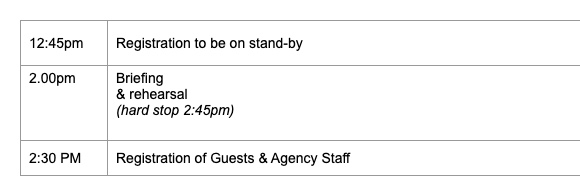
Mixed time formats, spacing that drifts row to row
Built in the tool
All times Asia/Singapore
Summit 2026 Programme
24‑Sep‑2026
Powered by EventNook
Consistent formatting, handled automatically
Anyone who has built a run-of-show by hand knows the actual complaint isn't the content — it's the formatting. A row gets added for a last-minute item and the spacing above and below it no longer matches the rest of the table. A column gets added for the room, and every existing row needs a manual edit to line back up. Someone screenshots it and pastes it into a chat asking "why is the gap between these two different from the others?" — and now it's a round of back-and-forth over cell padding instead of the actual programme.
None of that is a content problem. It's a side effect of building a schedule out of a tool that was never meant to hold one. The agenda builder treats each entry as a row with real fields — time, name, speaker, room, track, duration — so the spacing, the alignment and the responsive behaviour on a phone are handled once, by the layout, instead of by hand for every session.
Setting it up
The event
Summit 2026 Programme Marina Bay Sands, SingaporeTime zone & banner
Asia/SingaporeDays & sessions
Day 1 — 6 sessions · Day 2 — 4 sessionsPer session
Speaker, room, track, type badgeLayout & theme
Embed or share
Updates in place when you edit a session- Agenda title, tagline and venue (optional) — shown at the top of the published agenda.
- Time zone and banner (optional) — session times are shown exactly as typed; the time zone label just tells remote attendees which zone that is. The banner works best around 1600×600.
- Days and sessions — one day or several, each session getting its own duration.
- Per-session detail — speaker and room, a track for parallel programming, and a type badge to mark breaks, keynotes or workshops.
- Layout and theme — Timeline, List, Cards or Table; Light, Dark, Gradient or Minimal; a theme colour and typeface of your own.
- Publish — get a live embed and a shareable link, both of which update the moment you edit a session.
Four layouts, four themes — and the display toggles underneath
Click a layout below, then a theme. The same three sessions get restyled — Timeline keeps the connecting line and dots, List drops them for plain stacked rows, Cards boxes each session, and Table lines everything into columns, which is also where a second track shows up as a column of its own.
Underneath that, a set of display toggles handles the details: show or hide the banner, speaker, session descriptions, room labels, tracks, type badges, the time zone label, and a per-session add-to-calendar button. Nothing here needs a re-embed — toggling any of it updates the same live agenda.
Try it — click a layout or theme above
Multi-day and multi-track, without extra tabs to manage
A two-day conference with a morning track for engineering and another for design isn't a special case — it's how the builder works by default. Each session belongs to one day and, optionally, one track; Table layout renders tracks as side-by-side columns automatically, so a parallel programme reads as a parallel programme instead of one long list an attendee has to mentally sort by room.
Add a third day, or a third track for a workshop stream, and the schedule keeps the same shape — no new tab to build, no separate embed to maintain per day.
SUMMIT 2026 PROGRAMME
Track A
Track B
Track A
Track B
Try it — click Day 1 / Day 2 above
Where this fits: your App v3 registration microsite
If you're building the registration microsite in App v3 and want the programme to look like part of the page instead of a wall of pasted text, this tool is already one click away. The Event Description editor's Utility Tools menu — the same menu that holds the Countdown Timer, Add to Calendar and QR Code Generator — has Event Agenda listed right alongside them. Build the agenda from there (or in the toolkit directly), and the embed drops into the description block ready to render, no separate app to maintain next to your registration flow.
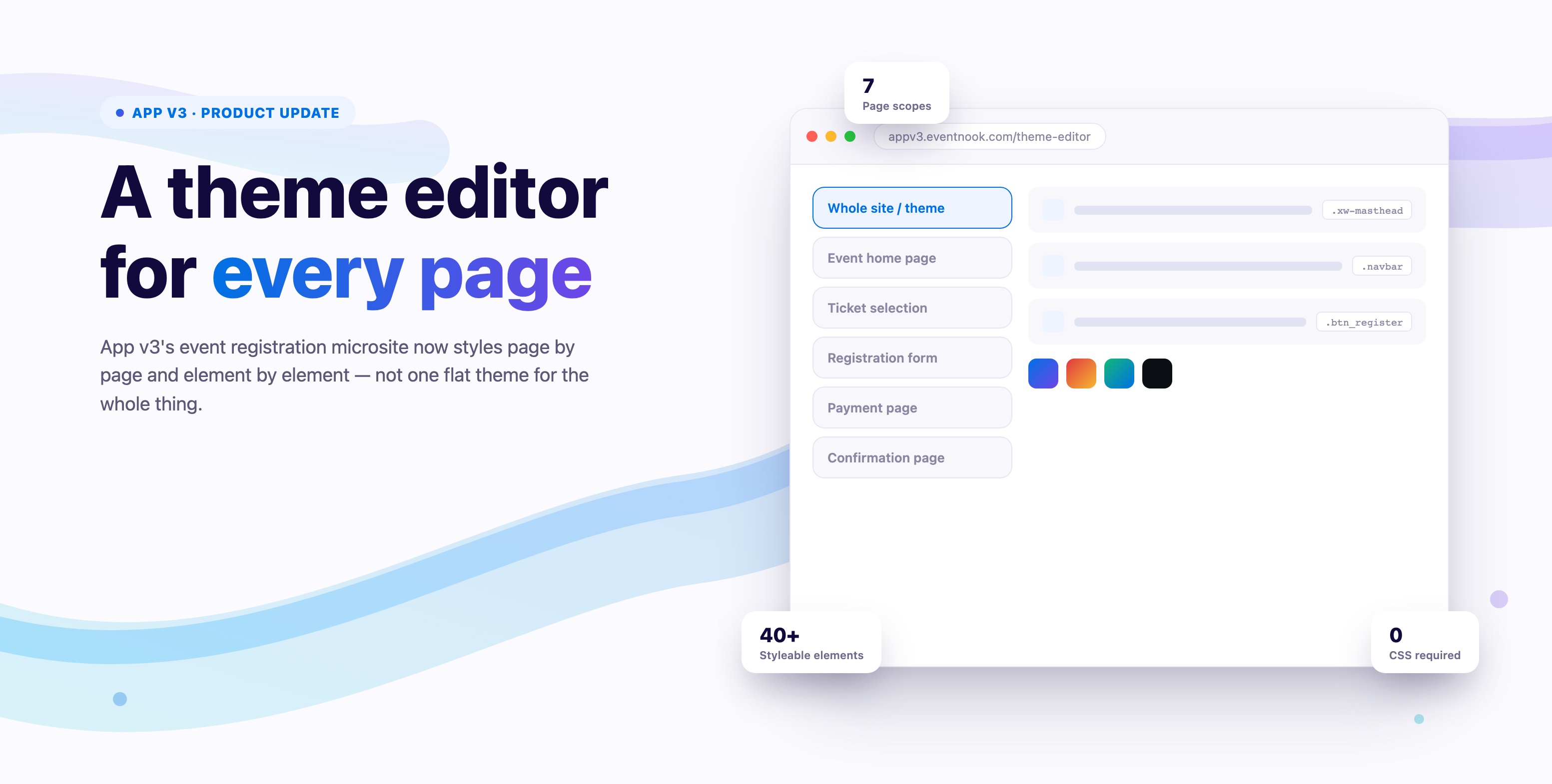
Pair it with the per-page Theme Editor from this week and the agenda sits on a landing page styled to match the rest of the microsite, rather than a plain table stapled onto branded content.
Free to build, an account to publish
No account is needed to lay out sessions and try every layout and theme — you can even point the banner at a public image URL before signing up. A free account is what turns the result into a live embed and a permanent shareable link: publishing is the step that makes an edited session update everywhere it's already been pasted, instead of you exporting and re-sending a new version.
Common questions
If I change a session after sharing the embed, do I need to re-paste anything?
No — editing a published agenda updates the live embed and the shareable link immediately, wherever either has already been placed.
Does it handle parallel sessions across multiple tracks?
Yes — assign each session a track, and Table layout lays tracks out as side-by-side columns automatically.
Can I hide the parts I'm not using, like speaker photos or room labels?
Yes — banner, speaker, descriptions, room, track, type badges and the time zone label each have their own display toggle, independent of layout and theme.
Can attendees add just one session to their calendar, not the whole event?
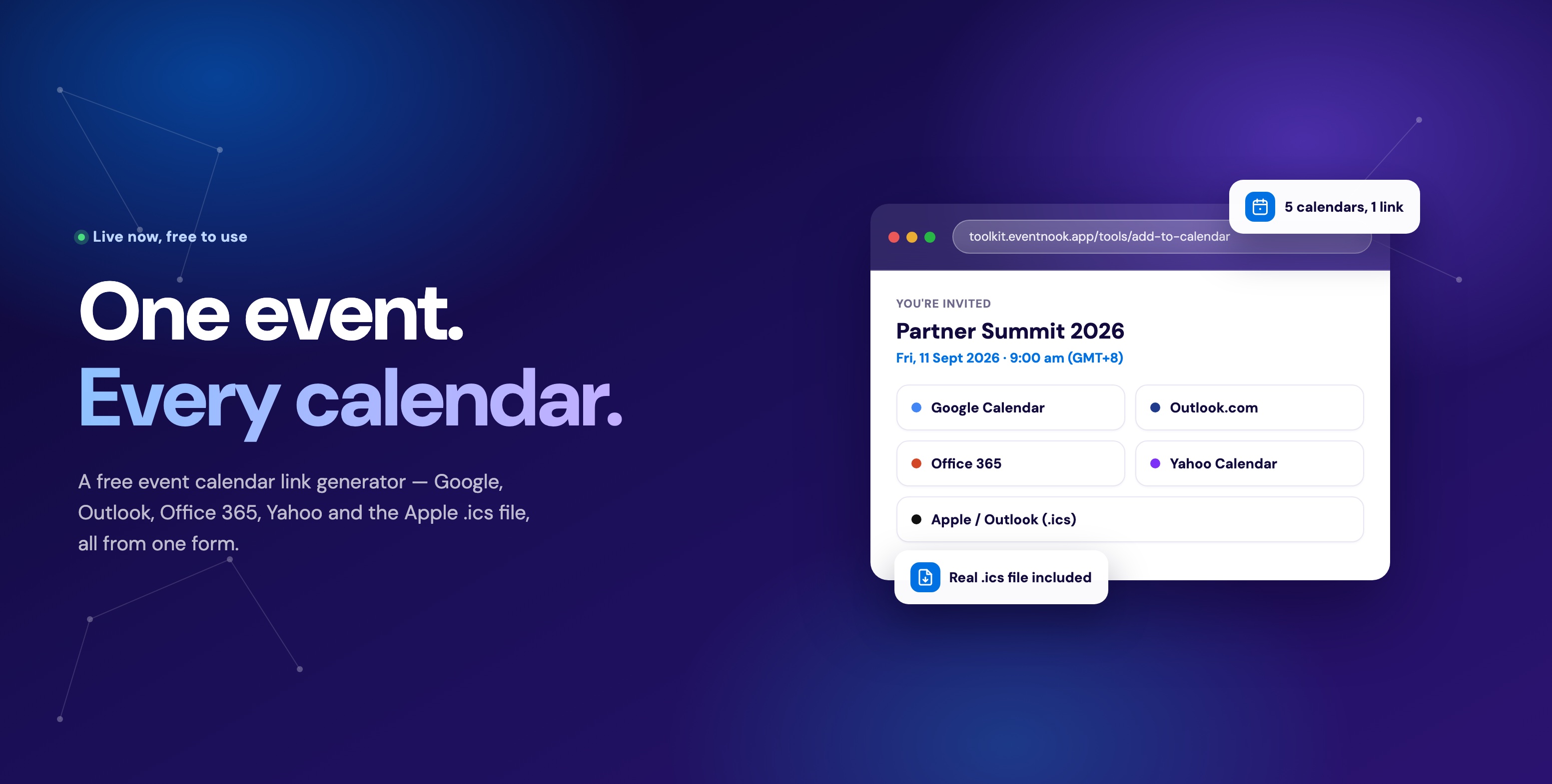
Yes — a per-session add-to-calendar button can be turned on, which works the same way as the toolkit's standalone calendar link generator.
More than one tool
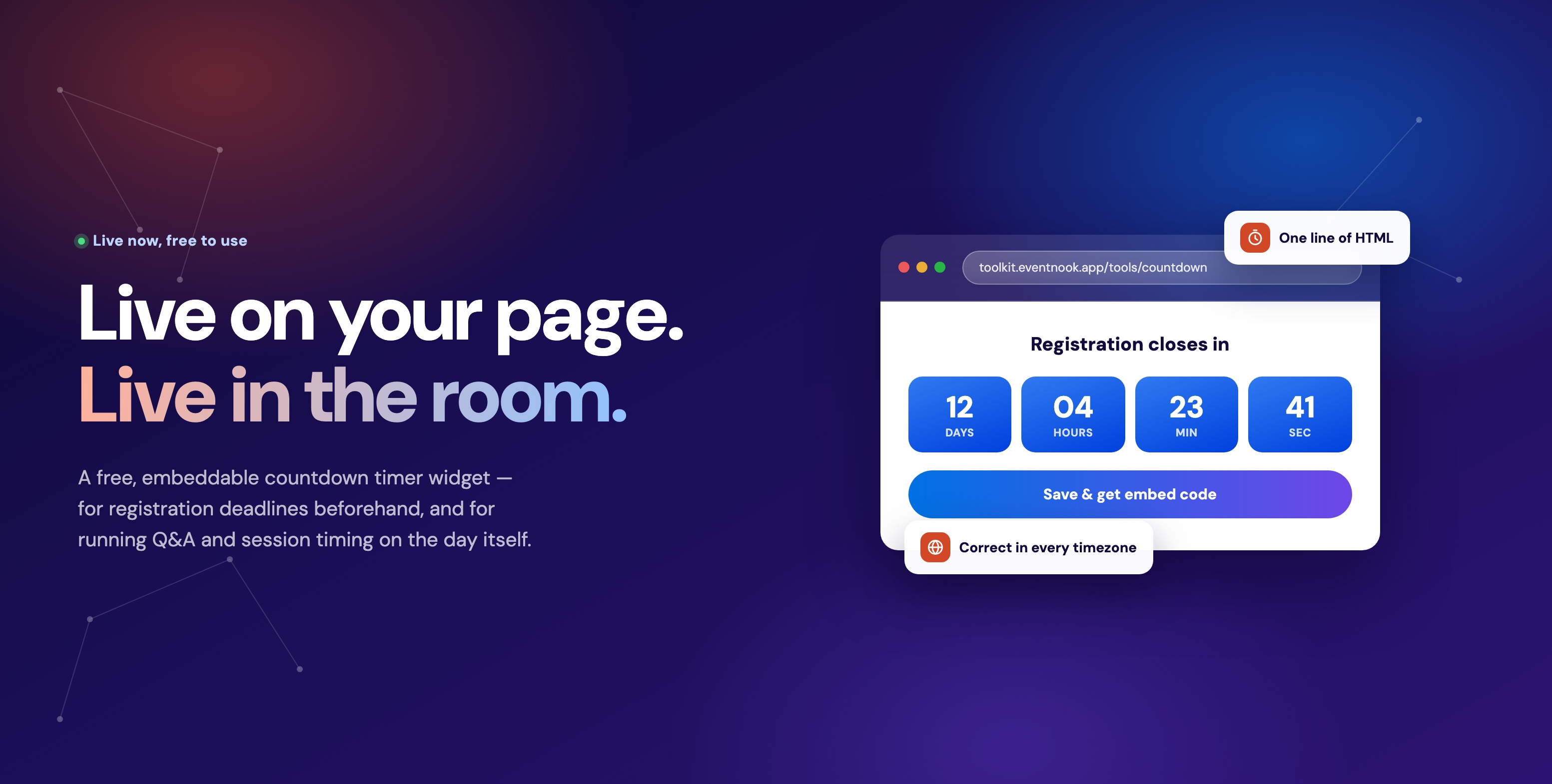
The agenda builder is one of thirteen free tools in the EventNook Toolkit, alongside the calendar link generator, the countdown timer widget, a QR code generator and a time zone planner — all free, no sign-up to try any of them.
Try it
It takes a few minutes to lay out a full programme, and nothing until you're ready to publish.
Build an agenda · See the full toolkit · Talk to us about event ticketing